

Watching live sport on a television is a very different experience from following it on a phone. A larger screen makes football easier to read, motorsport timing graphics clearer and fast-moving sports more enjoyable. It is therefore understandable that viewers who once encountered StreamEast through a laptop or mobile browser may look for a way to open it on a smart TV.
The practical answer is that a website can sometimes be opened through a television browser, cast from another device or displayed through screen mirroring. That does not mean the page will work properly, and it does not make an unauthorised broadcast legal or safe.
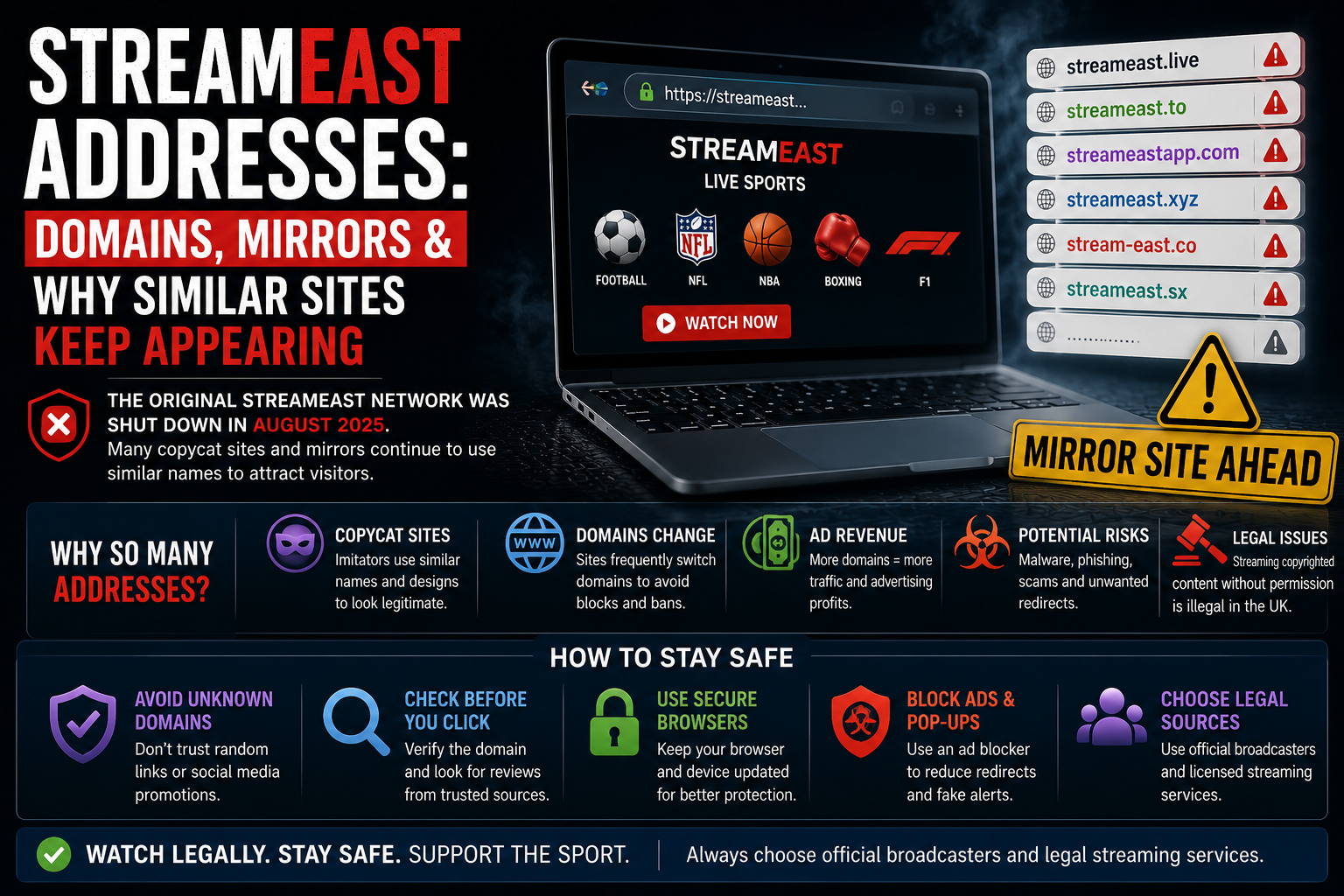
The original StreamEast network was reported shut down on 3 September 2025 after action involving Egyptian authorities and the Alliance for Creativity and Entertainment. ACE said the operation had used 80 associated domains and received more than 1.6 billion visits during its final year.
Websites may continue using StreamEast on Smart TV, Stream East or East Stream branding, but a familiar name does not establish that a current page belongs to the former network. It may be a copied website, a repurposed domain or an unrelated operator attempting to attract viewers who still recognise the name.
A smart television also introduces its own technical and security considerations. Television browsers are not always as capable as current desktop browsers, typing with a remote can make suspicious links harder to inspect, and installing unknown applications can expose the entire device to unnecessary risk.
This guide explains the main ways people attempt to view browser-based sport on a television, why some pages fail and how to choose a safer large-screen option.
Can StreamEast Be Opened on a Smart TV?
Many current smart televisions include a built-in web browser.
Samsung provides a web browser on supported televisions, while LG also includes browser access through its webOS television platform.
In principle, a viewer can open the television browser, enter an address and visit a website in much the same way as they would on a computer.
In practice, the experience can be very different.
Television browsers may have limited support for certain website features, video players and scripts. LG warns that its built-in browser can behave differently from a computer browser and may not support everything a website expects.
A page may therefore:
- open but fail to display its player;
- show the fixture schedule without loading video;
- remain stuck on a loading symbol;
- display buttons that cannot be selected properly;
- lose sound after entering full-screen mode;
- reload when the television runs low on memory;
- show a blank or unsupported-content message.
These limitations are not proof that the television is faulty. The website may simply have been designed for phones and computers rather than television browsers.
A Browser That Opens the Page May Still Fail to Play Video
Loading a homepage and playing live video are separate tasks.
A television browser may be able to display text, images and event cards while failing to support the player used by the website. The video may depend on a script, format or third-party service that does not work correctly on the television.
Unofficial sports pages often add further complexity by loading their players through external hosts and surrounding them with advertising scripts.
The main page may work while the embedded source has been removed or blocked. No setting on the television can restore a video that no longer exists at its source.
A page may also claim that the browser is outdated and that a special player must be installed. A smart TV should not require software downloaded from an unknown sports page merely to display ordinary web video.
When a website asks viewers to disable security settings, enter a code on another unfamiliar page or install an application outside the television’s normal store, it is safer to leave.
Why Smart TV Browsers Can Be Frustrating
Television browsers are designed for occasional web access rather than replacing a full computer.
Typing a long address with a remote is slow, and a small error can send the viewer to a different domain. The entire address may not remain visible after the page loads, making redirects harder to notice.
Pop-ups can be equally difficult to manage. A fake close button may sit inside the page while the television’s genuine browser controls are hidden behind another menu.
Other common difficulties include:
- a cursor that moves slowly;
- no easy way to open links in a separate tab;
- limited password management;
- weak support for file downloads;
- restricted browser extensions;
- difficulty clearing one website’s data;
- limited information in certificate warnings;
- older browser engines on televisions no longer receiving full support.
Samsung notes that website playback problems can occur when sites do not fully support television browsers.
This is one reason official applications normally offer a better television experience than opening the same service through a browser.
Why a StreamEast Page May Look Different on a Television
Websites can detect screen size, browser type and device information.
A television may receive a different layout from the one shown on a phone. Some controls may be larger, while others may disappear entirely.
Advertising networks can also deliver different material to televisions and mobile devices. A page that seemed relatively simple on a laptop may present larger overlays or redirects when opened on the television browser.
The visitor may not realise that the page has moved to another domain because the address bar is no longer visible.
A familiar logo or fixture list should not be treated as confirmation that the destination remains the same website.
Can StreamEast Be Cast From a Phone?
Casting allows a supported application or browser to send video to a television or streaming device.
Google Cast works with Chromecast, Google TV Streamer and televisions with Google Cast support. Google’s official guidance says the phone, tablet or computer and the receiving television should generally be connected to the same Wi-Fi network.
When a legitimate application supports casting, the television receives the video directly while the phone acts as a remote control.
Browser-based casting may behave differently.
Some websites expose a proper Cast control. Others require the entire browser tab or phone screen to be mirrored. An unofficial video player may refuse to cast, produce sound without a picture or stop when the phone locks.
Casting also does not change the source of the content.
An unauthorised stream remains unauthorised when sent from a phone to a television. Any redirects, data collection or account risks remain connected with the original page.
Casting and Screen Mirroring Are Not the Same
The terms are often used interchangeably, but they describe different processes.
Casting
With proper casting, a supported application tells the television or streaming device where to obtain the video. The phone remains available for other tasks and usually acts as a controller.
This method tends to be smoother because the television receives the stream directly.
Screen mirroring
Screen mirroring reproduces everything shown on the phone, tablet or computer.
Notifications, pop-ups, advertisements and browser controls may all appear on the television. The source device generally needs to remain active throughout the event.
Roku describes screen mirroring as replicating the screen of a compatible phone, tablet or computer on the television.
Mirroring can be useful for photographs, presentations and supported video. It does not improve the quality or safety of the page being mirrored.
Why Screen Mirroring Can Perform Poorly
Mirroring requires the phone or computer to receive the video and transmit the screen to the television at the same time.
This can increase demand on:
- the home Wi-Fi network;
- the source device’s processor;
- battery power;
- memory;
- the wireless connection between devices.
The result may include delayed sound, reduced picture quality or visible stuttering.
A phone using mobile data while mirroring over local Wi-Fi can create an even less predictable setup.
Fast-moving sport is particularly sensitive to delay and dropped frames. A small problem that is barely visible during a conversation programme can make a football pass, Formula 1 overtake or boxing exchange difficult to follow.
An official television application is normally better able to deliver the video directly at the quality supported by the device.
Using AirPlay From an iPhone or iPad
Apple’s AirPlay technology allows supported video to be sent from an iPhone, iPad or Mac to Apple TV or an AirPlay-compatible smart television.
Apple’s consumer instructions say the sending device and receiving television should be connected to the same Wi-Fi network for normal AirPlay streaming and screen mirroring.
When an application supports AirPlay properly, a viewer can select the AirPlay icon and choose the television.
When it does not, screen mirroring may be the only option.
Some video providers restrict mirroring or external playback because of their licensing and content-protection arrangements. In those situations, the television may show a black screen even though the video remains visible on the phone.
An unofficial webpage may also fail because its player is technically unstable rather than because AirPlay itself is broken.
Do not install an unknown profile, certificate or application because a sports webpage claims it is needed to unlock AirPlay.
Using Google Cast or Chromecast
Google Cast works most reliably through applications that include a recognised Cast button.
The phone and television should be on the same wireless network, and the receiving device must have Google Cast enabled.
If the Cast icon does not appear, check:
- that both devices use the same Wi-Fi network;
- that the receiving device is powered on;
- that Google Cast is enabled on the television;
- that the application genuinely supports casting;
- that the phone and television software are current.
A website may display a graphic that resembles the Cast symbol without offering genuine casting support. Touching it could open an advertisement or download page instead.
Use the controls supplied by a recognised application or browser rather than trusting an icon drawn inside an unfamiliar video player.
StreamEast on Fire TV and Firestick
Amazon Fire TV devices are legitimate streaming products designed to run television applications.
Amazon’s official instructions direct users to search for applications through the Fire TV menu and download them from the Amazon Appstore.
The concern begins when an unknown website tells viewers to install an app from outside the store.
A page may provide a short code or direct-download address and describe the software as:
- the official StreamEast Firestick app;
- an updated player;
- an advertisement-free version;
- a required live-sports application;
- a replacement for a removed store listing.
Those descriptions are not evidence of authenticity.
An outside installation can bypass the normal store route and make it harder to identify who created the software. It can also request permissions or run background processes that are not obvious from the television screen.
Readers considering any StreamEast-branded download should first review whether StreamEast has an app.
Sideloading on Fire TV
Sideloading means installing software from outside the device’s ordinary application store.
It has legitimate uses for development and private software testing. It is not required for most mainstream sports services, which distribute applications through recognised stores.
An unauthorised sports seller may ask customers to:
- change Fire TV developer settings;
- allow installation from unknown sources;
- download an installation file;
- enter login or payment information;
- keep automatic updates disabled.
Following those instructions gives an unknown provider much more control than simply opening a webpage.
Do not weaken device security because a match is about to begin.
When the authorised broadcaster supports Fire TV, its official website should link to the correct Appstore listing.
StreamEast on Google TV or Android TV
Google TV and Android TV devices also support recognised applications through Google Play.
They may include Google Cast, allowing video to be sent from a phone or tablet. Google’s support guidance explains that both devices should be connected to the same Wi-Fi network and that the Google Cast system application must be enabled.
As with Fire TV, Android-based television platforms can sometimes install software from outside the official store.
That flexibility should not be mistaken for approval.
A directly downloaded application may have an unknown developer, outdated code or excessive permissions. A sports application should not need unrelated access to storage, microphones or personal account information.
Keep Google Play Protect and other built-in protections enabled. A website asking viewers to turn them off is creating a larger risk than the original playback problem.
StreamEast on Roku
Roku devices are built around applications available through the Roku platform, along with casting and screen-mirroring features on supported hardware.
Roku’s current guidance explains that compatible Android and Windows devices can mirror their screen to a Roku player or television. It also supports AirPlay on compatible models for Apple devices.
A Roku television browser is not normally the main route for web access. Viewers are more likely to use an official Roku app, casting or mirroring.
Do not confuse a private or unofficial app claiming to offer broad free sports coverage with a verified broadcaster application.
The broadcaster’s official website should confirm whether Roku is supported.
Samsung Smart TVs
Samsung televisions include an application platform and, on supported models, a built-in browser.
Samsung promotes installing television applications through its smart-TV app system.
Using an official broadcaster application is normally more dependable than typing a StreamEast-style address into the browser.
An authorised app is designed for the television’s remote, screen resolution and video system. It can also receive updates through the television platform.
The browser may still be useful for reading news or viewing simple websites, but complex third-party players can fail or behave unpredictably.
When a website says the Samsung television needs a separate player downloaded from an unknown address, do not proceed.
LG Smart TVs
LG televisions using webOS include a browser and access to applications through the LG Content Store.
LG notes that its television browser can behave differently from a computer browser and that some websites may not open or function as expected.
A player that works on a laptop may therefore show an error on an LG television.
The more reliable route is the official application supplied by the broadcaster, when one is available for that model.
Older televisions may no longer support the latest version of an application. In that situation, adding a recognised streaming device can be safer and more practical than attempting to force unsupported websites through the built-in browser.
Why Television Software Updates Matter
A smart television is an internet-connected device.
Like phones and computers, it receives software updates that fix faults and security weaknesses. The UK National Cyber Security Centre advises smart-device owners to install updates promptly and enable automatic updates when available.
An outdated television may:
- fail to run current applications;
- struggle with newer security certificates;
- stop supporting certain video services;
- contain unpatched security weaknesses;
- lose access to application-store updates.
Updates should come through the television’s own settings or the manufacturer’s support system.
Never install a television firmware file offered by an unfamiliar streaming page.
Why Older Smart TVs Struggle More
Television hardware is kept for much longer than mobile phones.
A television may still have an excellent panel after its browser and application platform have become outdated. Manufacturers may stop supporting older models as web standards and video-protection systems change.
The NCSC advises consumers to consider how long a smart device will receive manufacturer support, because unsupported devices become easier to compromise and may stop working properly.
This does not mean the entire television must be replaced.
A current, recognised streaming device can add modern applications and security updates while allowing the existing screen to remain in use.
Can a Smart TV Get Malware?
A smart television is less likely than a computer to receive an ordinary Windows virus, but it is still an internet-connected device running software.
Unknown apps, compromised accounts and unsafe downloads can create problems. A malicious or poorly designed application may collect information, open advertisements or interfere with performance.
The NCSC warns that smart devices require secure passwords, software updates and careful management because security weaknesses can expose privacy or the home network.
The greater immediate risk from many unofficial streaming pages is often not direct television infection but social engineering.
The page may persuade the viewer to:
- visit a second website on a phone;
- scan a QR code;
- enter a password;
- provide card information;
- install an app;
- subscribe to browser notifications;
- disable a protection setting.
The television becomes the starting point for a scam completed on another device.
Be Careful With QR Codes on the Television
A QR code can make television login easier. Legitimate broadcasters use them to connect a television app with an account already signed in on a phone.
An unfamiliar streaming page can use the same method to send viewers towards:
- fake login forms;
- application downloads;
- payment pages;
- advertising subscriptions;
- malicious websites.
Before scanning, check who displayed the code and what service it belongs to.
After scanning, inspect the address shown on the phone before opening it. A page claiming to represent a recognised broadcaster should use that broadcaster’s genuine domain.
Do not enter an important password simply because the television says activation is required.
Avoid Entering Card Details With a Television Remote
Payment forms on a television are slow and difficult to inspect.
A viewer may focus on entering the card number while overlooking the company name, renewal price or cancellation terms.
An unknown page may claim that card information is needed for free verification. That explanation should be treated with suspicion.
A legitimate subscription should clearly identify:
- the company receiving payment;
- the exact price;
- whether it renews automatically;
- the billing frequency;
- what sport or service is included;
- how cancellation works.
GOV.UK warns that entering credit or debit card details on unregulated pirate websites increases the risk of fraud and data theft.
When payment is genuinely required, complete it through the broadcaster’s recognised website or official application.
Family Viewing and Inappropriate Advertising
Sport is often watched with children or as a family.
Unofficial services may use advertising networks with few meaningful controls over what appears. A pop-up can show gambling, explicit material or frightening fake security alerts without warning.
UK government guidance says illegal streaming boxes and applications commonly lack parental controls and can expose children to explicit or age-inappropriate advertising.
The impact is greater on a television because everyone in the room sees the same screen.
An official application is more likely to provide predictable advertising standards, profile controls and recognised reporting routes.
Does Casting Make an Unofficial Stream Legal?
No.
Casting is only a delivery method.
The UK government states that ordinary streaming devices are legal when used for legitimate content but become part of illicit streaming when adapted or used to access subscription television and sport without the required permission.
The legal position depends on the source and rights, not the screen.
A broadcast does not become authorised because it is sent through Chromecast, AirPlay, Fire TV, Roku or a smart-TV browser.
Our guide to whether StreamEast is legal in the UK explains the distinction between devices, viewers and people distributing streams.
Why Casting May Show a Black Screen
A black television screen with sound or controls visible can occur for several reasons.
The video provider may use content protection that prevents mirroring. The website player may not support external displays. The television and phone may also use incompatible formats.
Other possible causes include:
- weak Wi-Fi;
- outdated television software;
- a browser tab that has gone to sleep;
- a source video that stopped;
- casting from an unsupported player;
- an overloaded phone;
- a temporary receiver problem.
A black screen does not justify installing an unknown player or disabling device protection.
Test a recognised cast-enabled application. If that works, the television and network are probably functioning, and the difficulty is more likely connected with the website or player.
Why Casting Keeps Disconnecting
Casting depends on a stable local network.
The phone and television should normally remain on the same Wi-Fi network. Guest networks, mobile hotspots and routers that separate devices can prevent discovery or interrupt playback.
Google and Apple both advise connecting the sending and receiving devices to the same Wi-Fi network for their standard casting and AirPlay workflows.
Try these safe checks:
- confirm both devices use the same network;
- restart the phone and television;
- restart the router when other devices also have problems;
- update the official application;
- update the television or streaming device;
- move closer to the router;
- close unnecessary applications on the phone.
Do not change advanced router settings based on instructions from an unfamiliar sports website.
Should the Television and Phone Use the Same Account?
Some legitimate platforms require both devices to be connected with the same service account. Others use a one-time activation code.
Google Cast itself mainly depends on network connectivity and application support, while some media controls and personalised features can also rely on the same Google account.
A random sports webpage should not need the password for the television manufacturer’s account.
Never enter an Apple, Google, Amazon or Samsung password into a StreamEast-style form. Sign in only through the device’s genuine settings or the official application belonging to that provider.
A VPN Can Complicate Television Playback
A VPN can be used for legitimate privacy and remote-access purposes, but it may interfere with casting.
The phone may send its internet traffic through the VPN while the television remains on the normal home network. Some configurations prevent the devices from discovering one another.
A VPN can also add delay and reduce available speed.
Using one does not repair a missing video source, and it does not make an unauthorised stream legal.
Do not install a VPN on a smart TV solely because an advertising page claims it is required. A recommendation attached to a streaming page may be a paid referral rather than a genuine technical solution.
Safe Smart TV Troubleshooting
A few ordinary checks can rule out common problems without weakening the device.
Test an official application
Open a recognised video service already installed on the television.
When every application fails, the television or connection may be responsible. When only one browser page fails, the issue is more likely connected with that website.
Restart the television
Use the proper restart option or follow the manufacturer’s guidance.
A restart can clear temporary memory problems but cannot restore a suspended domain.
Check the internet connection
Open another app or website.
When the television is offline, reconnect it through the network settings.
Update the television
Install updates through the television’s settings.
The NCSC recommends applying smart-device updates promptly and using automatic updates where available.
Update or reinstall an official app
Amazon recommends clearing app data, restarting Fire TV or uninstalling and reinstalling an app when a recognised application will not load.
Use this step only for verified applications installed through the normal store.
Keep security warnings active
Do not bypass certificate warnings or disable device protection for an unknown page.
Avoid factory resetting too early
A reset removes accounts and settings. It should be a later step used with the manufacturer’s instructions, not the first response to one failing website.
Signs a Television Page Should Be Closed
Leave when the page:
- opens repeated advertising windows;
- claims the television has several viruses;
- asks for a special media player;
- presents a QR code for an unknown download;
- requests card details for free verification;
- tells viewers to disable security;
- asks for an Apple, Google, Amazon or Samsung password;
- moves between several domains;
- displays more than one overlapping play button;
- requires an app from outside the television store;
- claims every premium sports channel is included for a tiny fee;
- provides no identifiable company information.
A working picture does not erase these warning signs.
What to Do After Installing an Unknown TV App
Uninstall the application through the television or streaming device’s settings.
Then:
- review other recently installed apps;
- remove unfamiliar accounts;
- change any password entered through the app;
- review card transactions;
- update the device software;
- restart the television;
- reset the device if serious unusual behaviour continues.
For Fire TV, Amazon provides an uninstall option through the installed-application settings.
When the same password was reused elsewhere, change it on those services as well, beginning with email.
What to Do After Scanning a Suspicious QR Code
Scanning a code alone does not necessarily cause harm.
The risk increases when the destination page receives information or persuades the visitor to install software.
Close the page and check:
- whether anything downloaded;
- whether an app was installed;
- whether notification permission was granted;
- whether login details were entered;
- whether payment information was submitted.
Change exposed passwords and contact the bank when card details may have reached an unknown seller.
Better Ways to Watch Sport on a Smart TV
The most dependable route is the official application supplied by the authorised UK broadcaster.
Depending on the event, recognised large-screen options may include apps connected with:
- Sky Sports;
- NOW;
- TNT Sports;
- DAZN;
- Prime Video;
- BBC iPlayer;
- ITVX;
- Channel 4;
- Channel 5;
- S4C;
- official league or governing-body services.
Availability differs between television brands and models.
When the television does not support the required app, a recognised Fire TV, Google TV, Apple TV or Roku device may add it without replacing the entire television.
Our guide to legal StreamEast alternatives for UK sports fans explains how the main viewing services differ.
Check the Broadcaster Before Installing Anything
Begin with the competition or event organiser.
Find the broadcaster officially listed for the United Kingdom, then visit that broadcaster’s genuine website. Its device-support page should confirm whether it offers:
- a Samsung app;
- an LG app;
- Fire TV support;
- Google TV support;
- Apple TV support;
- Roku support;
- Chromecast;
- AirPlay.
Follow the store link supplied by the broadcaster rather than searching for a familiar name and selecting the first result.
Our guide to finding the official sports broadcaster gives a practical checking process for individual matches and events.
A Bigger Screen Does Not Reduce the Risk
Moving a video from a phone to a television changes the viewing experience, not the source behind it.
The original StreamEast network was reported dismantled, and current pages using similar names may be controlled by unrelated operators. A familiar television interface does not verify them.
Built-in browsers can struggle with complex players. Screen mirroring can reproduce every pop-up and false warning on the largest screen in the room. Unknown television apps can request access that an ordinary webpage would never receive.
Use the official broadcaster’s app whenever possible. Keep the television updated, install software through recognised stores and avoid QR codes or downloads promoted by unknown sports pages.
Stream-east.org.uk is an independent informational publication. It is not affiliated with the former StreamEast network or with current websites and television applications using similar names. It does not host live sporting events, distribute television software or provide links to unauthorised streams.