

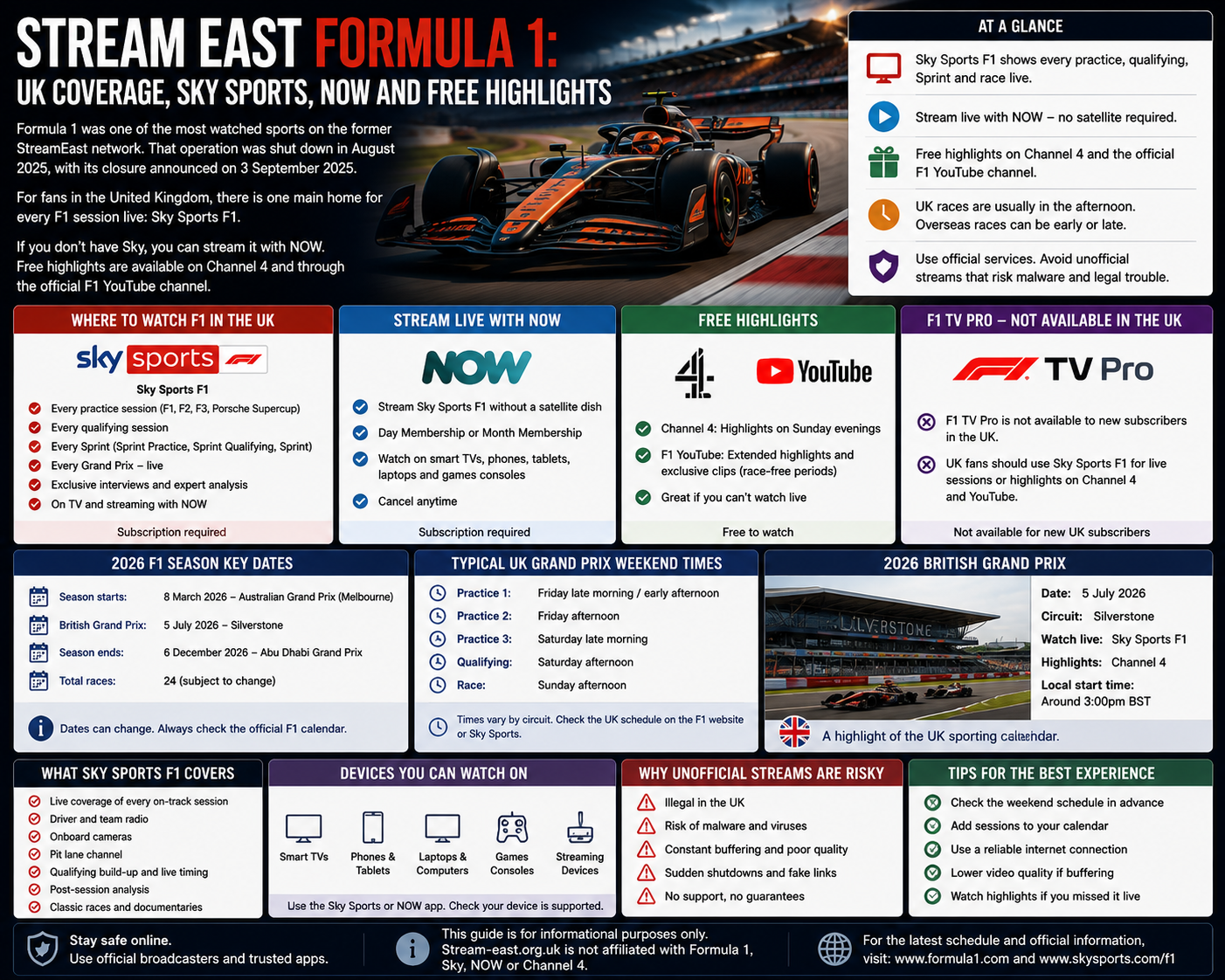
Watching live sport online should not require gambling with the security of your phone, television, email account or bank card.
Licensed broadcasters provide applications and websites designed for ordinary consumer use. Their services identify the company taking payment, explain what the subscription includes and provide support when the video does not work.
Unverified streaming pages can be very different.
A visitor may encounter several play buttons, repeated redirects, browser-notification requests, false security warnings and instructions to install unfamiliar software. The page may display a genuine fixture and convincing sports branding while providing no reliable information about who operates it.
The UK government warns that unauthorised streaming websites, applications and modified devices can expose users to malware, fraud and data theft. It says the risk becomes particularly serious when payment-card information is supplied to unregulated pirate services.
The former StreamEast network was shut down in 2025 after receiving more than 1.6 billion visits across 80 associated domains, according to reporting on the enforcement operation. Its disappearance did not remove the name from the internet, and unrelated websites and applications continue to use similar branding.
Safe viewing begins before the play button is pressed. The viewer should confirm the broadcaster, inspect the website or application and understand exactly what information is being requested.
Start With the Official Broadcaster
The safest way to find a match is to begin with the organisation responsible for the event.
Depending on the sport, that may be:
- the league;
- tournament organiser;
- governing body;
- club;
- national association;
- event promoter;
- broadcaster already confirmed by the rights holder.
Look for an official “Where to Watch,” “Broadcast Partners,” “TV Coverage” or match-centre section.
Once the UK broadcaster has been identified, visit that broadcaster’s genuine website or application. Confirm that the exact match, race or fight appears in its schedule.
This approach avoids a common problem: opening a page that uses the correct event title but has no authorised video behind it.
Our official sports broadcaster guide provides a step-by-step process for checking an individual event.
Do Not Search Only for “Free Live Stream”
A broad search for a free stream can produce pages designed around search traffic rather than dependable sports coverage.
The result may use the names of:
- the teams;
- competition;
- fighters;
- circuit;
- television channel;
- scheduled start time.
None of those details proves that the page holds broadcasting rights. Fixture information is public and can be copied automatically.
A page can also be created shortly before a major event, rank for the correct terms and disappear immediately afterwards.
Search for the official competition or broadcaster instead of adding words such as “free,” “working link,” “mirror” or “no sign-up.”
Check the Full Web Address
The visible design of a website can be copied.
The address is harder to overlook, but it still requires careful reading.
Check for:
- missing letters;
- additional letters;
- unexpected hyphens;
- reversed words;
- unrelated words inserted into the brand;
- a different domain ending;
- a shortened link hiding the destination.
A copied website may use a spelling that looks correct when read quickly.
The presence of HTTPS or a padlock is not proof that the operator is trustworthy. HTTPS protects the connection between the browser and website, but a deceptive site can also use an encrypted connection.
The padlock does not verify:
- sports rights;
- company ownership;
- payment terms;
- the safety of downloads;
- affiliation with a broadcaster;
- the honesty of a login form.
Our guide to recognising fake streaming sites explains the most common address and branding tricks.
Confirm Who Operates the Service
A legitimate subscription provider should identify the company behind it.
Look for:
- a clear company name;
- customer-support information;
- subscription terms;
- a privacy policy;
- cancellation instructions;
- supported devices;
- recognised payment methods.
An unknown sports page may list only a contact form, social-media username or messaging account.
Be cautious when support is available only through:
- Telegram;
- WhatsApp;
- private social-media messages;
- an anonymous email address;
- comments under a video;
- a cryptocurrency-payment screen.
A seller offering every sports channel at an unusually low price without identifying its company is not providing the accountability expected from an authorised broadcaster.
A Working Video Does Not Prove the Website Is Safe
Viewers often judge a sports page by one question: did the match start?
That test is too limited.
A video can work while the website also:
- tracks visitors extensively;
- opens misleading advertisements;
- requests notification permission;
- collects login information;
- sells recurring subscriptions unclearly;
- directs users towards unknown downloads;
- changes domains without warning.
A 2019 academic study of hundreds of illegal live-streaming domains found widespread use of deceptive advertising, extensive tracking and potentially harmful browser-extension promotions.
The picture appearing on screen does not tell the viewer what the surrounding page is doing.
Recognise Fake Play Buttons
A fake play button is an advertisement How to Watch Live Sport Safely Online designed to look like part of the video player.
It may cover:
- the real play control;
- volume;
- full screen;
- picture quality;
- the progress bar;
- the player’s close button.
When pressed, it can open:
- a betting website;
- an application-store listing;
- a software download;
- a subscription form;
- a prize page;
- another streaming domain.
Returning to the original page may reveal a second play icon underneath. That control may be genuine or another advertisement.
A dependable service should not require several unrelated pages to be closed before the video begins.
Our fake streaming play-button guide explains how these layered controls work.
Close Redirects Through the Browser
When an unexpected website opens, use the browser’s own tab or window controls.
Do not trust buttons inside the redirected page, even when they say:
- Close;
- Cancel;
- Go back;
- Remove warning;
- Continue safely.
A fake close button can trigger another redirect or download.
Open the browser’s tab view and close the entire unfamiliar tab. When the original sports page immediately opens another destination, close that page as well.
Persistent redirects are not a normal requirement for watching video.
The Stream East redirects guide includes browser-specific cleanup steps.
Never Press “Allow” to Unlock a Video
A message may say that notification permission is required to:
- confirm the visitor is human;
- start the player;
- remove advertisements;
- prove age;
- continue to the event;
- pass a security check.
Browser-notification permission is not normally needed to play an online video.
Once permission is approved, the website can send alerts after the page has been closed.
Those alerts may imitate:
- virus warnings;
- account messages;
- sports updates;
- prize notifications;
- subscription problems;
- delivery messages.
Chrome allows users to block pop-ups, redirects and notifications for individual websites through its site-permission settings.
Our streaming website notifications guide explains how to remove unwanted alerts from Chrome, Safari, Firefox and other browsers.
Treat Virus Warnings Inside a Webpage as Unverified
A sports page may suddenly claim that the device contains several viruses.
The warning can include:
- the phone or computer brand;
- a countdown;
- an animated scan;
- warning sounds;
- an urgent repair button;
- a telephone number;
- a recommended security application.
A webpage cannot be trusted to diagnose the entire device simply because it displays a convincing alert.
Close the tab through the browser interface.
Do not:
- call the displayed number;
- install the recommended program;
- give someone remote access;
- pay a repair fee;
- enter a password;
- provide bank information.
Google lists persistent virus alerts, unfamiliar redirects, unwanted extensions and pop-ups that do not disappear among the signs that unwanted software may be present.
A single fake warning does not prove that the device has already been infected. The risk increases when the visitor follows the warning’s instructions.
Do Not Install a Special Video Player
Modern phones, computers and smart televisions already support video through their browsers and recognised streaming applications.
An unknown sports page should not require:
- a codec;
- browser extension;
- APK file;
- television player;
- configuration profile;
- certificate;
- security update;
- modified application.
A download may be described as the official StreamEast player, an advertisement-free version or an update needed for high-definition video.
The name does not verify the developer.
Use software only when the authorised broadcaster links to it through its own website or recognised application-store listing.
Our StreamEast app guide explains how to inspect developers, store listings and requested permissions.
Use Recognised Application Stores
Installing through a recognised application store gives the viewer more information than downloading a file from an unknown webpage.
An app-store page can show:
- the developer;
- update history;
- reviews;
- privacy disclosures;
- age rating;
- in-app purchases;
- subscription information.
Apple says its App Store pages include privacy information describing how data such as location, browsing history and contacts may be collected or used. It also provides central purchase and subscription-management tools.
An app’s presence in a recognised store does not prove that it is affiliated with the organisation named in its title. Check the developer and follow the direct store link provided by the broadcaster.
Review App Permissions
A sports application should request only the access required for its features.
Reasonable requests may include:
- notifications for match reminders;
- local storage for legitimate downloads;
- network access;
- casting-device discovery.
Question requests for:
- contacts;
- text messages;
- call history;
- unrestricted photographs;
- permanent precise location;
- microphone access;
- camera access.
Apple’s App Privacy Report can show how frequently installed applications access location, camera, microphone and other data, along with information about their network activity.
When a simple sports player refuses to work without access to unrelated personal information, remove it.
Keep Google Play Protect Enabled
Android allows applications to be installed outside Google Play, but that flexibility should not be confused with approval.
A streaming page may tell the visitor to disable Play Protect because its application has been incorrectly identified.
Do not follow that instruction.
Security protections exist to identify suspicious or harmful software. A match is not worth weakening the controls protecting email, banking and stored personal information.
When an unknown app has already been installed, remove it and run the device’s normal trusted security checks.
Keep Devices and Browsers Updated
Updates fix software problems and known security weaknesses.
The NCSC advises keeping operating systems, applications and device software current so known vulnerabilities cannot be exploited.
Update through:
- the device settings;
- the recognised application store;
- the manufacturer’s official support system;
- the browser’s built-in update feature.
Never install an update offered by a pop-up over a sports player.
A genuine browser or television update should come from the manufacturer, not an advertising page.
Keep Browser Protections Turned On
Browsers include controls for:
- fraudulent-site warnings;
- pop-ups;
- redirects;
- downloads;
- notifications;
- camera access;
- microphone access;
- location;
- intrusive advertisements.
A website may claim that these protections prevent the stream from working.
Disabling them may expose the advertising and download activity the browser was blocking.
Google’s Chrome guidance allows users to keep pop-ups and redirects blocked by default and manage individual site permissions separately.
Do not reduce security across the whole browser to accommodate one unfamiliar page.
Use Unique Passwords
An unknown streaming page may request account creation before displaying the event.
Never reuse the password protecting:
- email;
- banking;
- shopping;
- social media;
- cloud storage;
- mobile accounts.
If the streaming service stores or exposes that password, it can be tested against other websites.
Email is especially important because it is commonly used to reset additional accounts.
The NCSC recommends password managers for generating and storing strong, unique passwords.
A password manager also makes a fake domain easier to notice because it may not offer to fill credentials on an address that does not match the genuine service.
Turn On Two-Step Verification
Two-step verification adds another requirement after the password.
It can prevent an attacker from entering an account even after obtaining the password.
The NCSC recommends enabling two-step verification on important accounts because it makes unauthorised access more difficult when a password is compromised.
Prioritise:
- email;
- banking;
- Apple or Google accounts;
- Amazon;
- television providers;
- social media;
- password managers.
Passkeys are also increasingly available. The NCSC says properly implemented passkeys provide security equal to or stronger than traditional password-and-verification combinations.
Do Not Give an Unknown Site Your Main Email Password
A streaming page may display a button saying:
- Continue with Google;
- Sign in with Apple;
- Connect Amazon;
- Verify Sky account;
- Link television provider.
A genuine login connection should redirect to the real provider’s domain or use the provider’s official application.
Check the address carefully before entering credentials.
A copied page can imitate the appearance of Google, Apple, Amazon or a broadcaster.
The streaming service should never ask for the password inside an ordinary form that remains on its own domain.
Use Care With Payment Details
Before entering card information, confirm:
- the legal name of the seller;
- the exact price;
- the billing frequency;
- whether the charge renews;
- what content is included;
- how to cancel;
- whether the company is an authorised provider.
Be cautious when card details are supposedly needed for:
- free verification;
- age confirmation;
- a trial that does not show renewal terms;
- human verification;
- regional checking.
Government guidance says the fraud and data-theft risk associated with illegal streaming increases significantly when users submit payment-card information to unregulated pirate websites.
A free video should not require a hidden recurring subscription.
Prefer Store or Broadcaster Billing
Paying through a recognised broadcaster or application store usually provides:
- a purchase record;
- a named merchant;
- subscription-management controls;
- a defined cancellation route;
- customer support.
Apple’s App Store allows users to review purchase history and manage active subscriptions from one place.
This does not mean every sports-related app in the store is authorised to show matches. It makes the payment relationship easier to identify.
The underlying broadcaster should still be confirmed.
Avoid Cryptocurrency-Only Sports Sellers
Cryptocurrency has legitimate uses, but an unknown streaming seller accepting only cryptocurrency removes many of the protections expected from an ordinary consumer transaction.
Warning signs include:
- no company name;
- no refund policy;
- payment sent to a wallet address;
- support through private chat;
- lifetime access promises;
- rapidly changing domains;
- no clear subscription terms.
A provider selling every premium sports channel for one very low cryptocurrency payment is unlikely to have the commercial agreements required to distribute all that content lawfully.
Do Not Buy Shared or Stolen Accounts
Social-media sellers may offer cheap access to:
- Sky;
- TNT Sports;
- DAZN;
- League Pass;
- Game Pass;
- Prime Video;
- pay-per-view events.
The login may belong to another customer, have been created with stolen payment information or be sold to many people at once.
Access can disappear without warning, and entering the account on your device may expose your location, device name or other information to the seller.
Purchase subscriptions directly through the provider or an authorised television, mobile or broadband partner.
Be Careful With QR Codes
QR codes are commonly used for legitimate television sign-in.
A broadcaster may display a code so the viewer can link a smart-TV application with an existing account.
An unfamiliar streaming page can use the same method to hide a destination.
Before opening the result:
- Inspect the address displayed by the phone.
- Confirm that it belongs to the broadcaster.
- Check for spelling changes.
- Avoid unexpected downloads.
- Do not enter a password on an unrelated domain.
A code displayed over an unofficial sports player should not be assumed to be an activation code.
Treat Shortened Links Carefully
A shortened link hides the final destination.
It may lead to:
- an authorised broadcaster;
- an advertising service;
- an unknown application;
- a payment page;
- a fake login;
- another streaming domain.
A verified sports organisation may occasionally use shortened links on social media. The surrounding account and destination should still be checked.
Do not use shortened links posted by anonymous accounts or comments to find a supposed mirror.
Do Not Trust Social-Media Follower Counts Alone
A streaming account can copy:
- a broadcaster logo;
- fixtures;
- promotional images;
- team photographs;
- event countdowns.
Accounts can also be renamed, compromised or sold.
Check whether the official league, club or broadcaster links to that account from its own website.
Be cautious when an account:
- posts only streaming links;
- creates urgency before kick-off;
- asks users to send private messages;
- promotes a new domain every few days;
- offers paid access through personal bank transfers;
- claims that every previous address has been blocked.
Watch Out for Fake Customer Support
A redirected page or social account may claim that technical support can repair the stream.
The supposed adviser may ask the viewer to:
- install remote-access software;
- share the screen;
- provide a verification code;
- reveal a password;
- transfer money;
- provide card details.
The NCSC warns that genuine representatives will not ask people to disclose passwords, transfer funds or provide remote access simply because of an unsolicited security contact.
Use the support route listed in the broadcaster’s official application or website.
Private Browsing Is Not Complete Protection
Private or Incognito mode limits what the browser stores locally after the session.
It does not:
- verify the website;
- block every tracker;
- prevent downloads;
- make an unauthorised broadcast legal;
- protect information entered into a fraudulent form;
- remove malware already installed;
- stop every redirect.
Private mode can be useful for testing whether stored cookies or extensions are causing a technical problem.
It should not be treated as a safety shield for suspicious websites.
A VPN Does Not Make a Website Safe
A VPN changes the route taken by internet traffic.
It does not confirm:
- who operates the website;
- whether the stream is authorised;
- whether the page contains malicious advertising;
- whether a payment form is genuine;
- whether an application is safe.
A VPN can also complicate casting, reduce speed or trigger regional-service restrictions.
Do not install a VPN promoted by the same pop-up or page causing the problem.
Advertisement Blockers Have Limits
A reputable content blocker may reduce some pop-ups and advertising requests.
It does not prove that the underlying stream is authorised or that the website is trustworthy.
A site may also ask the viewer to disable the blocker. Doing so can reveal the full advertising system, including redirects and fake controls.
Do not install a browser extension recommended by an unfamiliar streaming page.
Use well-known browser protections and official services instead of trying to make a dangerous page less dangerous.
Protect Children From Uncontrolled Advertising
Unofficial streaming sites may lack the advertising standards and parental controls provided by established platforms.
Children can be exposed to:
- gambling promotions;
- explicit advertising;
- frightening virus warnings;
- deceptive prizes;
- payment forms;
- unknown chat rooms.
UK government guidance warns that illegal streaming services may lack parental controls and expose users to inappropriate material alongside malware and fraud risks.
Use family profiles, age restrictions and official applications when sport is watched with children.
Use a Separate Family Viewing Profile
A television or streaming device used by several people should have clear account controls.
Where supported:
- create child profiles;
- restrict purchases;
- require a payment PIN;
- turn off installation from unknown sources;
- limit browser access;
- keep the device updated.
Do not leave stored payment methods available inside unknown applications.
A family member trying to start a match quickly may approve a purchase or download without understanding what it is.
Watching on Mobile
Phones contain valuable personal information.
An unsafe mobile page may request:
- notifications;
- location;
- downloads;
- an app installation;
- access to photographs;
- card information;
- account credentials.
Small screens make fake controls harder to inspect.
Use the authorised broadcaster’s mobile application and follow the store link from its genuine website.
Our mobile sports viewing guide explains data use, browser permissions and mobile redirects.
Watching on Smart TVs
Smart televisions can run applications and, on some models, browse websites.
Built-in television browsers may have limited security information and awkward controls. It can be difficult to inspect the complete address or close an advertisement using a remote.
Use official television applications whenever possible.
Do not:
- sideload unknown sports apps;
- scan unfamiliar QR codes;
- enter card information into a browser player;
- enable developer settings for a random download;
- install firmware supplied by a streaming page.
Our smart-TV sports guide explains official apps, casting and streaming devices.
Casting Does Not Change the Source
Casting or mirroring an unofficial stream to a television does not make it safer or authorised.
The phone or computer still interacts with the original website.
Any problems involving:
- redirects;
- tracking;
- login forms;
- payment pages;
- notification requests;
- downloads;
remain present.
Use the official application’s Cast or AirPlay feature where available.
Check the Connection Without Weakening Security
When an official video buffers, safe technical checks include:
- testing another recognised service;
- checking Wi-Fi strength;
- pausing large downloads;
- restarting the application;
- restarting the router;
- lowering video quality;
- using Ethernet where available;
- updating the device.
Do not respond to buffering by disabling antivirus protection, fraudulent-site warnings or browser security.
Our Stream East buffering guide explains how to distinguish a home-network problem from an overloaded remote server.
What to Do After Visiting a Suspicious Page
Simply opening a page does not prove that the device is infected.
Close all unfamiliar tabs and check whether anything else happened.
Review:
- browser downloads;
- notification permissions;
- recently installed apps;
- extensions;
- home-screen shortcuts;
- unexpected profiles;
- recent login alerts.
When nothing was downloaded, no information was entered and no unusual permission was granted, the risk is lower.
Keep the browser and device updated and remain alert for unexpected behaviour.
What to Do After Downloading a File
Do not open a file merely to discover what it contains.
Delete it from the downloads folder.
When it was already opened or installed:
- Remove the unfamiliar application or extension.
- Review the permissions it held.
- Run the device’s trusted security checks.
- Update the operating system.
- Change passwords entered after installation.
- Check financial accounts if payment information was used.
The NCSC recommends keeping antivirus protection enabled and updated because malware can steal, encrypt or erase data.
Do not install a second unknown cleaner promoted by a pop-up.
What to Do After Entering a Password
Change the password through the genuine service immediately.
Also change it anywhere else it was reused.
Begin with the connected email account.
Then:
- enable two-step verification;
- review login activity;
- sign out unknown devices;
- check recovery addresses and phone numbers;
- inspect forwarding rules in email;
- use a unique new password.
Do not return to the suspicious streaming page to change the password there.
What to Do After Entering Card Details
Contact the bank or card provider using:
- its official application;
- its verified website;
- the telephone number printed on the card.
Explain what information was entered and whether a payment was authorised.
Review transactions for:
- small verification charges;
- recurring subscriptions;
- unfamiliar merchant names;
- repeated payment attempts;
- amounts higher than expected.
Closing the page or deleting the app does not automatically cancel a subscription.
What to Do After Allowing Notifications
Remove the website’s permission through the browser settings.
Do not wait for another alert and press it.
Chrome users can review notifications and pop-up permissions through Site Settings, while disruptive permissions may also appear in Safety Check.
After removing the permission, clear the site’s stored data if the page continues behaving unexpectedly.
What to Do After Installing an Unknown App
Uninstall it.
Then check:
- which permissions it received;
- mobile-data or battery usage;
- other apps installed at the same time;
- subscription records;
- notification access;
- accessibility access;
- device-administrator privileges.
An app requesting accessibility or device-administrator access can receive significant control. Do not approve those settings for an ordinary sports player.
On an iPhone or iPad, App Privacy Report can help show an application’s recent permission and network activity after the feature has been enabled.
Report Suspicious Websites
The UK National Cyber Security Centre accepts reports of suspicious websites.
The NCSC says scam sites may attempt to download viruses or steal passwords and personal information. Reporting a suspicious address can help it investigate and protect other users.
A person does not need to prove that the website is fraudulent before reporting it.
Do not revisit a dangerous-looking page solely to gather evidence. The browser history, original message or notification details may already contain the address.
A Safe Match-Day Routine
A simple routine can prevent most avoidable problems.
Several days before the event
- Confirm the competition.
- Find the official UK broadcaster.
- Check the subscription or pay-per-view price.
- Confirm device support.
- Install the application through the broadcaster’s store link.
On match day
- Update the application if needed.
- Sign in before the event.
- Confirm the start time.
- Check the connection.
- Avoid links posted in comments or private messages.
During the broadcast
- Do not approve unexpected permissions.
- Ignore unrelated security warnings.
- Do not install another player.
- Use the broadcaster’s support page if the video fails.
After the event
- Review whether a short-term subscription should be cancelled.
- Check that no unwanted notification permission was granted.
- Remove applications that are no longer needed.
Warning Signs That Should End the Session
Close the page when it:
- opens several unrelated tabs;
- displays overlapping play buttons;
- asks for notifications before playing;
- requests card details for a free event;
- tells you to disable security;
- downloads a file automatically;
- demands a browser extension;
- identifies no company;
- uses cryptocurrency-only payment;
- asks for a broadcaster password on its own domain;
- claims the device contains several viruses;
- requires remote-access software;
- changes addresses repeatedly;
- promises every premium sports channel for one tiny payment.
You do not need to prove that the page is malicious before leaving.
The absence of verifiable ownership and safe commercial information is enough.
The Safest Option Is Usually Easier to Verify
Authorised sports coverage can be fragmented and sometimes expensive, but it provides important protections.
A recognised service offers:
- a clear company identity;
- established applications;
- defined subscription terms;
- payment records;
- account recovery;
- privacy information;
- customer support;
- dependable schedules;
- better parental controls.
An unknown sports page may appear simpler because every event is placed in one list. That simplicity disappears when the viewer must navigate redirects, fake buttons, suspicious downloads and changing addresses.
Use the competition to find the broadcaster, use the broadcaster to find the application and use recognised payment systems when a purchase is required.
Our guide to legal StreamEast alternatives for UK sports fans compares the main subscription, league-pass and free-to-air options.
Stream-east.org.uk is an independent informational publication. It is not affiliated with the former StreamEast network or with websites and applications using similar names. It does not host live sport, distribute streaming software or provide links to unauthorised broadcasts.