

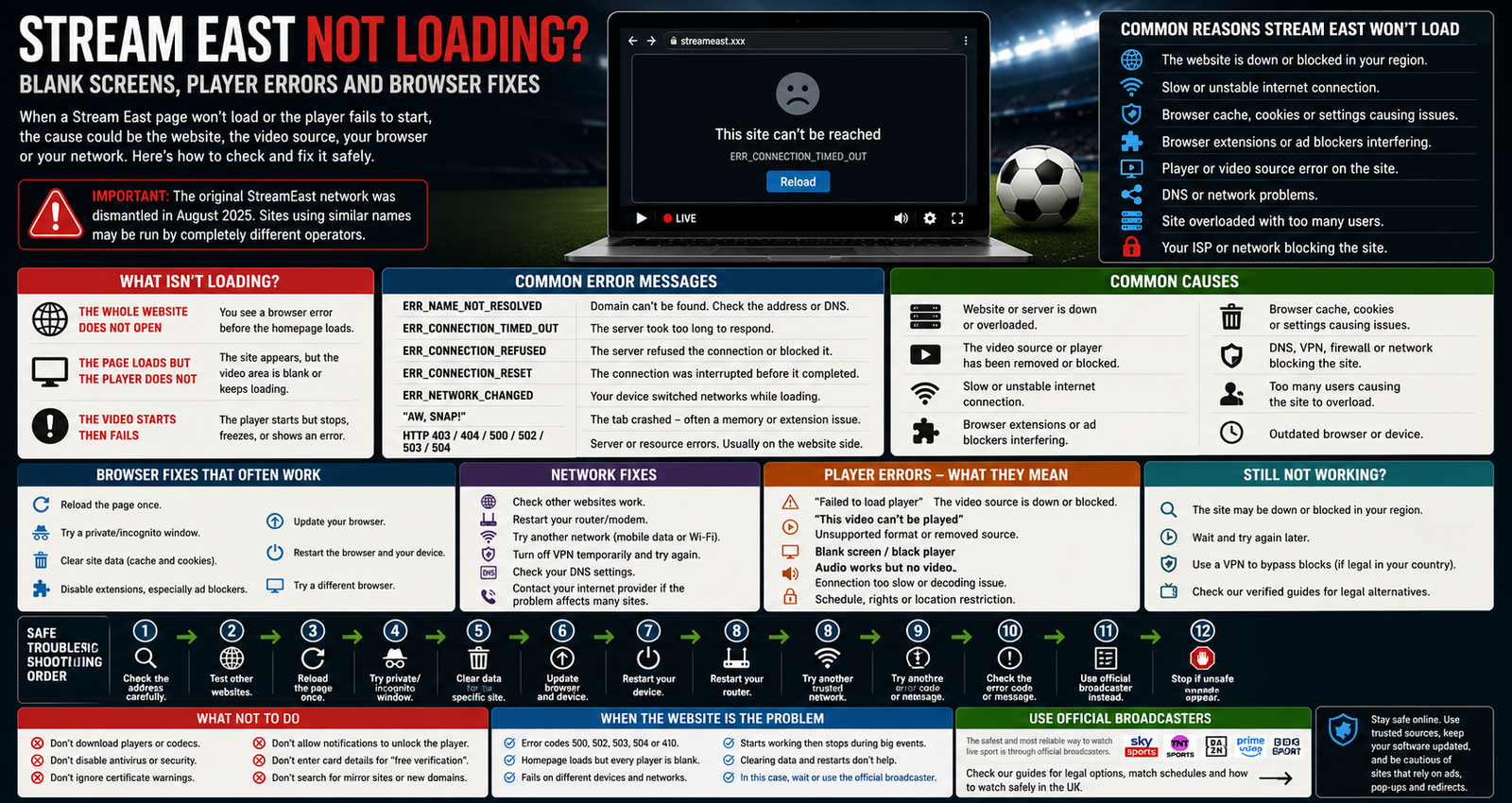
A Stream East page can fail in several different ways.
The entire website may refuse to open. The homepage may load while the sports player remains blank. A video can display an error message, spin endlessly or disappear immediately after the viewer presses play.
Although these failures look similar, they do not always have the same cause.
A browser problem may be fixed by restarting the application or clearing stored site data. A weak connection may improve after restarting the router. However, no setting on the viewer’s device can repair a domain that no longer exists, an overloaded remote server or a video source that has been removed.
The Stream East Not Loading name creates an additional problem. The original network was dismantled in August 2025, and the Alliance for Creativity and Entertainment publicly announced the shutdown on 3 September 2025. ACE said the operation had used 80 associated domains and received more than 1.6 billion visits during its final year.
Websites that now use StreamEast, Stream East or similar wording should not automatically be treated as continuations of that former network. They may have different operators, servers, advertisements and video sources.
This means one page can work while another fails, even when both use almost identical names and designs.
First Identify What Is Not Loading
Before changing browser or network settings, determine which part has failed.
There are three main possibilities.
The whole website does not open
The browser displays an error before showing the homepage.
Examples include:
- This site can’t be reached;
- Server not found;
- Connection timed out;
- Connection refused;
- The website’s address could not be found;
- a numbered HTTP error page.
This usually points towards the domain, server, network route or browser connection rather than the sports player itself.
The page loads but the player does not
The fixture list, navigation and advertisements appear, but the video area remains blank or shows an endless loading symbol.
This suggests that the website is online but the embedded player, video host or live source is unavailable.
The video begins and then fails
The player may start briefly before displaying an error, freezing or returning to a blank screen.
Possible causes include:
- an unstable source;
- server overload;
- browser memory problems;
- a weak connection;
- a player-format issue;
- a removed feed.
Separating these situations prevents unnecessary troubleshooting.
Check Whether Other Websites Work
Open two or three recognised websites or applications.
Try an established news page and an official video service. Avoid testing only another unfamiliar streaming website because both could be experiencing similar problems.
When nothing loads, the likely causes include:
- a lost internet connection;
- a router problem;
- a mobile-data issue;
- a device network setting;
- a wider provider outage.
When every other website works but one Stream East address does not, the problem is more likely to involve that domain or server.
Google’s Chrome troubleshooting guidance recommends first checking whether the loading problem affects only one website or several. When several sites fail, Google advises investigating the internet connection; when only one fails, the website itself may be unavailable.
Check the Address Carefully
A single incorrect character can produce a completely different result.
Common mistakes include:
- missing a letter;
- adding a letter;
- reversing the words;
- entering an outdated bookmark;
- using the wrong domain ending;
- following a shortened or redirected link.
Do not search for a replacement address simply because an old one fails.
The original network operated through many domains, and current lookalikes may have no connection with it. An address that worked previously can also expire, redirect or come under different control.
Our StreamEast addresses guide explains why all domain and mirror variations should be assessed together rather than treated as confirmed replacement services.
Reload the Page Once
A normal reload can resolve a temporary connection interruption or incomplete page request.
Use the browser’s genuine reload control rather than a refresh button drawn inside the webpage.
Avoid refreshing repeatedly.
Constant reloading can:
- reopen advertising scripts;
- create more redirects;
- send repeated requests to an overloaded server;
- duplicate video players;
- consume additional mobile data.
When one ordinary reload makes no difference, move to the next diagnostic step.
What “This Site Can’t Be Reached” Usually Means
“This site can’t be reached” is a general browser message rather than a precise diagnosis.
Chrome says connection and loading failures can be caused by device settings, the modem or router, cookies, extensions, memory use, security software or the website’s own downtime.
The detailed error code underneath the message is more useful.
Possible codes include:
ERR_NAME_NOT_RESOLVED;ERR_CONNECTION_TIMED_OUT;ERR_CONNECTION_REFUSED;ERR_CONNECTION_RESET;ERR_NETWORK_CHANGED;ERR_INTERNET_DISCONNECTED.
The wording may differ between devices and browsers, but the technical meaning is broadly similar.
ERR_NAME_NOT_RESOLVED
This error normally means the browser could not translate the domain name into the server address required to connect.
Possible explanations include:
- the address was typed incorrectly;
- the domain no longer resolves;
- its DNS settings are broken;
- the domain has recently changed;
- the local network is experiencing a DNS problem.
Google’s Chrome error guidance describes ERR_NAME_NOT_RESOLVED as a situation in which the hostname does not exist or currently points differently.
Check the spelling and confirm that other websites work.
Restarting the router or device may clear a temporary local issue. If only one Stream East-style domain produces this error, its own domain configuration is the more likely cause.
Do not treat the error as an invitation to search through random mirror lists.
ERR_CONNECTION_TIMED_OUT
A timeout occurs when the browser waits too long for a response.
The website may be:
- offline;
- overloaded;
- responding too slowly;
- unreachable through the current network;
- stuck behind a failing server or gateway.
A slow or unstable home connection can also cause a timeout.
Google notes that timed-out connections may be connected with a very slow internet connection or a webpage receiving too much traffic.
Test another recognised website and run a connection check.
When official video services work normally while one Stream East page times out, waiting or using the authorised broadcaster is more sensible than changing advanced network settings.
ERR_CONNECTION_REFUSED
A refused connection means the destination did not accept the browser’s attempt to connect.
Possible reasons include:
- the web server is not running;
- the requested service has been disabled;
- the server is rejecting the connection;
- a network or security system is blocking the request.
Google describes ERR_CONNECTION_REFUSED as a situation where the page has not allowed Chrome to connect or access has been blocked.
The viewer usually cannot repair a remote server that refuses connections.
If the error affects only the unfamiliar streaming page, changing the home router is unlikely to solve it.
ERR_CONNECTION_RESET
A reset means the connection began but was interrupted before the request completed.
This can happen because of:
- unstable internet;
- a server closing the connection;
- a VPN conflict;
- security software;
- an outdated browser;
- a network change.
Google includes an unstable connection, an outdated browser, VPN behaviour and security software among possible causes of a reset.
Restart the browser and test an official website.
Do not disable essential security protection solely to make an unfamiliar sports page open. A blocked request can sometimes be the protection working as intended.
ERR_NETWORK_CHANGED
This message can appear when the device moves from one connection to another during loading.
A phone may switch between:
- Wi-Fi and mobile data;
- 5G and 4G;
- one Wi-Fi access point and another;
- a normal network and a VPN connection.
Chrome describes this error as the device disconnecting from one network or connecting to a new network while the page is loading.
Wait for the connection to stabilise, close the tab and open the page again.
When the error continues across every website, review the phone, router or internet connection rather than the streaming page.
“Aw, Snap!” or Browser Tab Crashes
Chrome’s “Aw, Snap!” message usually means the tab could not continue loading.
Possible causes include:
- insufficient memory;
- a browser extension;
- damaged stored data;
- an unstable script;
- too many open tabs;
- a page consuming excessive resources.
Unofficial streaming pages can be demanding because they may load video, several advertising systems, pop-ups and tracking scripts at the same time.
Close unused tabs and applications, then restart the browser.
When the page works in a private or Incognito window, stored data or an extension may be affecting normal browsing. Google recommends Incognito as a diagnostic test and then suggests checking extensions or deleting browsing data when the issue disappears there.
Private browsing does not make an unverified website safe. It only helps identify whether normal browser data is contributing to the loading failure.
Understanding Common HTTP Error Codes
Some pages display a three-digit HTTP status code.
These messages come from the website or one of the servers involved in delivering it.
403 Forbidden
A 403 response means the server understood the request but refused to process it. Repeatedly signing in or refreshing does not necessarily change the result.
A 403 can result from:
- server permissions;
- regional or network restrictions;
- blocked requests;
- access-control rules;
- protection against unusual traffic.
Do not attempt to bypass the restriction through unknown software or configuration instructions.
404 Not Found
A 404 means the server cannot find the requested page or resource.
The main website may still be online while a particular event page or player has been removed.
Check whether the address was copied correctly. When the homepage loads but the event link returns 404, the missing resource is probably on the website’s side.
410 Gone
A 410 response indicates that the requested resource is no longer available and that the condition is likely to be permanent.
Unlike a temporary loading failure, this status is a stronger indication that the page has intentionally been removed.
429 Too Many Requests
A 429 response means the server has received too many requests within a period and is limiting access.
Repeated refreshing can make this problem worse.
Close the page and stop sending further requests.
500 Internal Server Error
A 500 error is a general server-side failure. Mozilla describes it as a catch-all response used when the server encounters an unexpected condition and has no more specific error to return.
This is normally not something a visitor can repair through browser settings.
502 Bad Gateway
A 502 response means one server acting as a gateway received an invalid response from another server upstream.
This can occur when a sports page depends on another host for its video or content.
The outer website might remain partly visible while the upstream player fails.
503 Service Unavailable
A 503 response means the server is not ready to handle the request. Common reasons include maintenance or overload.
Major live events can produce sudden traffic. A small unofficial server may become unavailable when many viewers arrive together.
504 Gateway Timeout
A 504 response appears when a gateway or proxy server cannot obtain an upstream response in time.
As with 502, it usually points to the website’s server chain rather than the viewer’s browser.
Why the Homepage Loads but the Player Is Blank
A website and its video can come from different servers.
The homepage may load its text, fixtures and graphics from one location, while the player requests video from another host.
This means the page can look normal even when:
- the video host is offline;
- the source has been removed;
- the embed address has expired;
- the player script has failed;
- the event has no active feed;
- the source server is overloaded.
A blank player does not always mean the browser is broken.
Test an official video platform in the same browser. When that video works, the browser can clearly play online media, and the Stream East player becomes the more likely source of the problem.
Why the Player Shows an Endless Loading Circle
The loading circle means the player is waiting for something.
It may be waiting for:
- the video source;
- an advertising response;
- a player script;
- authorisation from the host;
- enough video data to begin;
- a remote server connection.
An endless spinner can therefore occur even with fast broadband.
When advertisements, menus and other page elements continue working, the missing piece is often the remote video feed.
The troubleshooting steps in why Stream East keeps buffering can help distinguish weak Wi-Fi from an overloaded source.
Why the Player Says “Failed to Load”
“Failed to load” is usually a generic player message.
It does not reveal whether the failure involves:
- the video file;
- the live source;
- a script;
- an advertisement;
- an unsupported format;
- a blocked request.
Reload once and test another official video service.
If the player continues failing while other video works, the problem is most likely outside the viewer’s control.
Do not download a replacement player promoted by an advertisement. Modern browsers and recognised sports applications include the video support they need through normal updates.
Why the Page Shows a Black Screen With Audio
Audio requires less data than video and may continue when the picture cannot be decoded or delivered properly.
Other possible causes include:
- the video format is unsupported;
- the device lacks processing capacity;
- screen mirroring is restricted;
- the player has failed;
- the source is delivering damaged video.
Restart the browser or application and test a recognised stream.
When the problem appears only while casting or mirroring, use the official application’s Cast or AirPlay control rather than reproducing the full browser screen.
Why the Player Works in One Browser but Not Another
Browsers differ in their:
- privacy controls;
- script handling;
- stored site data;
- extension support;
- video-format support;
- security settings.
A page may work in Chrome but fail in Firefox, Safari or Edge.
That does not necessarily mean one browser is defective. The website may have been tested poorly or may depend on behaviour blocked by another browser’s privacy protections.
Mozilla recommends clearing site cookies and cache, testing extensions and comparing the website with another browser when pages fail or display incorrectly.
Do not switch to an outdated browser or disable fraudulent-site warnings simply because it allows a suspicious page to open.
Test a Private or Incognito Window
Private browsing creates a temporary session with fewer stored cookies and usually without ordinary extensions.
When the page loads privately but not in the normal window, the likely causes include:
- damaged cookies;
- corrupted cache data;
- an extension conflict;
- stored permissions;
- an old login state.
Chrome officially recommends Incognito as a diagnostic step for loading errors. If the website works there, Google advises returning to normal browsing and checking extensions or deleting browsing data.
Use private mode only as a test.
It does not:
- verify the website owner;
- prevent all tracking;
- make the stream authorised;
- protect information entered into a fraudulent form;
- stop every redirect.
Clear Data for the Specific Website
Browsers store cookies, cached files and site settings.
Damaged or outdated data can prevent a page from loading properly.
Removing data only for the affected site is preferable to clearing the entire browser when that option is available.
This may:
- sign the user out;
- remove preferences;
- reset player settings;
- clear stored permissions;
- force the page to download fresh files.
Chrome, Safari, Firefox and Edge all identify cookies or cached data as possible causes of page-loading problems.
Clearing data cannot restore an unavailable server, expired domain or missing video source.
Update the Browser
An outdated browser may struggle with current:
- website scripts;
- security certificates;
- video features;
- encryption standards;
- player interfaces.
Chrome, Safari and Edge all include updating the browser or operating system among their recommended loading and stability checks.
Use the browser’s official update system:
- Google Play or Chrome settings;
- Apple system updates;
- Microsoft Edge settings;
- the recognised Linux package manager;
- the official Mozilla update process.
Never download an update from a pop-up displayed by the streaming page.
Restart the Browser and Device
A restart can clear:
- temporary memory pressure;
- a frozen tab;
- a stuck network process;
- an incomplete update;
- a temporary video-decoding problem.
Close the browser fully rather than leaving it open in the background.
When the issue continues, restart the phone, computer, television or streaming device.
Apple and Google both include restarting the browser or device in their official troubleshooting advice for pages that fail to load.
Restarting will not repair a remote server, but it is a safe way to rule out temporary local problems.
Check Browser Extensions
Extensions can change how websites load.
Advertisement blockers, privacy tools, script controls, VPN extensions and security software may block parts of a player.
A malicious or poorly designed extension can also cause redirects or page failures.
Test the website in the browser’s official troubleshooting or private mode. When it works there, review installed extensions and remove anything unfamiliar.
Google, Apple, Mozilla and Microsoft all include extensions among the areas to investigate when a page does not load correctly.
Do not permanently disable trusted security protection for an unknown streaming site.
If the player requires protections to be removed before it operates, using the authorised broadcaster is safer.
Do Not Disable Pop-Up Protection
Some pages claim their player cannot load because pop-ups are blocked.
The blocked windows may contain advertisements rather than the sporting event.
Disabling pop-up protection can expose the browser to:
- fake play buttons;
- unwanted tabs;
- misleading security warnings;
- application downloads;
- payment pages;
- notification traps.
Our Stream East redirects guide explains why video controls and advertising links can be deliberately difficult to distinguish.
Keep browser protections active and avoid pages requiring several unrelated windows before video appears.
Check Whether the Browser Blocked Mixed or Unsafe Content
A secure webpage can attempt to load video or scripts through an insecure or improperly configured connection.
Modern browsers may block that content to protect the user.
The result can be:
- a blank player;
- missing controls;
- a security symbol;
- a warning in the address bar.
Do not override the warning for an unfamiliar sports page.
The problem belongs to the website operator, who should configure the page and player securely.
A valid-looking padlock on the outer website also does not prove that its embedded video, advertisements or downloads are trustworthy.
Check the Internet Connection
A weak or unstable connection can prevent the page or player from loading.
Test the connection through:
- another website;
- a recognised video application;
- a speed test;
- another device on the same network.
When every device is affected, restart the router using the manufacturer’s ordinary process.
When one phone fails but another works, check the affected device’s network settings.
When only the Stream East page fails, the remote website remains the more likely cause.
Restart the Router
Restarting a router can clear a temporary connection, addressing or DNS problem.
Turn it off through its normal controls, wait briefly and allow it to reconnect fully.
Do not repeatedly reset the router to factory settings. A factory reset removes broadband and Wi-Fi configuration and is not an appropriate first response to one failing website.
After the restart, test a recognised service before returning to the problematic page.
If all official services work, the home connection is functioning.
Try Another Network for Diagnosis
Testing another ordinary connection can help identify where the problem exists.
For example, compare:
- home Wi-Fi;
- mobile data;
- another trusted private network.
When the page fails everywhere, the website or server is likely responsible.
When it fails only on one network, the cause may involve:
- that network’s DNS;
- local filtering;
- organisational restrictions;
- router settings;
- the internet provider.
Use another network only as a diagnostic test, not as a method of bypassing legal, workplace, school or provider restrictions.
Public Wi-Fi May Require a Sign-In Page
Hotel, café, airport and workplace networks can appear connected while still requiring the user to accept terms or sign in through a portal.
Until that process is completed, ordinary websites may not load properly.
Google notes that public Wi-Fi often uses a portal page and that Chrome may prompt users to complete the sign-in.
Open a recognised non-sensitive website to check whether the network displays its sign-in page.
Avoid entering streaming account or payment information over an untrusted public network.
Check for a VPN Conflict
A VPN changes the route used by internet traffic.
The chosen server may be:
- slow;
- unavailable;
- blocked by the destination;
- unable to connect with the local network;
- interfering with casting or browser requests.
Apple includes VPN and security software among the areas to check when Safari pages fail to load.
When a VPN is already being used for a legitimate purpose, temporarily disconnecting it can help determine whether it is causing the technical error.
Do not install a VPN advertised by the Stream East page. It will not restore a missing source or make unauthorised coverage legal.
Do Not Change DNS to Find a Mirror
DNS problems can prevent a domain from resolving, but changing DNS should not be used as a method of finding or restoring an unofficial streaming address.
When many ordinary sites fail, restart the router and contact the internet provider if the issue continues.
When one Stream East-style domain fails, the domain itself may be inactive or incorrectly configured.
Following instructions from comments or pop-ups to use a different DNS service can:
- hide the original problem;
- cause new connection issues;
- bypass organisational controls;
- direct users towards unverified addresses.
The safest response to one missing sports site is to check the official broadcaster.
Why an Advertisement Blocker May Change the Page
An advertisement blocker can remove scripts that the page uses for promotions, tracking or pop-ups.
On poorly built websites, player controls may be mixed with those same scripts. The result can be an empty area or a player that does not initialise.
That does not automatically mean the blocker is faulty.
It may mean the page has connected essential-looking controls with advertising behaviour.
Do not disable all protection simply to test an unverified stream. Use a recognised broadcaster whose video player is designed to work without deceptive overlays.
Why the Player Disappears After Pressing Play
Pressing play may trigger a redirect or replace the player with an advertisement.
The source can also be removed after the page loads.
Possible outcomes include:
- the player frame becomes blank;
- a new tab opens;
- the page refreshes;
- a registration form appears;
- a download prompt covers the video.
Return through the browser’s tab controls rather than pressing buttons inside an unfamiliar advertisement.
If the player repeatedly disappears, leave the site.
Why Full Screen Does Not Work
Full-screen failure can result from:
- a browser permission;
- an unsupported television browser;
- an advertising overlay;
- a broken player;
- casting restrictions;
- an incompatible embedded frame.
Try full screen on a recognised video service.
When that works, the Stream East player is probably responsible.
Do not install an extension or special player merely to enable full screen.
Why the Page Loads on a Phone but Not a Smart TV
Smart-TV browsers often support fewer website features than current phone and computer browsers.
A television may display text and images while failing to run the video player or advertising scripts.
Older television browsers may also have limited memory and outdated video support.
The more dependable large-screen option is the official broadcaster’s television application or a recognised streaming device.
Our smart-TV viewing guide covers browsers, casting and official apps in more detail.
Why the Page Loads on Wi-Fi but Not Mobile Data
Possible causes include:
- weak mobile reception;
- a depleted data allowance;
- a data-saving setting;
- mobile-browser restrictions;
- a network-specific connection problem;
- a website responding differently to each network.
Check whether other video services work over mobile data.
When all video fails, focus on the connection or mobile account. When only one page fails, the website may be rejecting or mishandling the request.
Do not install network profiles or unknown mobile applications to make the page open.
Why the Page Loads but Shows the Wrong Match
A player showing a different event is not normally a browser-loading problem.
The website may have:
- attached the wrong source;
- reused an old event page;
- mislabelled the fixture;
- lost the intended stream;
- redirected the player.
Refreshing repeatedly may not change anything.
Confirm the event through the official competition and broadcaster instead.
Why a Match Page Says “Event Has Ended”
The event page may use a timer based on:
- an incorrect time zone;
- an old schedule;
- a delayed fixture;
- a previously used player;
- an automated event listing.
Check the competition’s official schedule.
When the match is still taking place but the page says it has ended, the website’s event information is unreliable.
Why the Video Says It Is Unavailable in Your Region
Licensed broadcasters use regional controls because their agreements apply to particular countries.
An unofficial page may also display a regional message because its embedded host blocks certain locations or has lost access.
Do not assume that installing a VPN resolves the legal or technical issue.
Use the broadcaster authorised for the United Kingdom. The official sports broadcaster guide provides a practical way to confirm where the event is being shown.
Why an Old Bookmark No Longer Loads
A bookmark stores an address, not the identity of the organisation controlling it.
The domain may have:
- expired;
- been suspended;
- changed ownership;
- redirected;
- removed the event page;
- stopped operating.
Delete bookmarks that now open errors, unrelated pages or repeated redirects.
Do not assume that the nearest spelling found through a search is the new official address.
Safe Troubleshooting Order
Use this sequence to avoid unnecessary changes.
1. Confirm the address
Check for typing mistakes, but do not search for mirrors.
2. Test other websites
Determine whether the problem affects the whole connection or only one domain.
3. Reload once
Avoid repeated refreshing.
4. Restart the browser
Close it fully before reopening.
5. Test a private window
This helps identify stored data or extension conflicts.
6. Clear data for the affected site
Use targeted removal where possible.
7. Update the browser and device
Use official settings and recognised stores.
8. Restart the device
This can clear temporary memory and network problems.
9. Restart the router
Do this when several services are affected.
10. Test another trusted network
Use it only to diagnose the source of the problem.
11. Check the error code
A 404, 500, 502 or 503 usually points towards the website rather than the viewer.
12. Stop when unsafe instructions appear
Do not download players, disable protection or enter payment details to fix loading.
What Not to Do
A loading failure should not persuade the viewer to weaken device security.
Do not:
- install an unknown browser extension;
- download a special video codec;
- disable antivirus protection;
- ignore certificate warnings;
- turn off fraudulent-site protection;
- allow notifications to unlock the player;
- install a StreamEast-branded APK;
- enter card details for free verification;
- scan an unfamiliar QR code;
- follow mirror links shared in comments;
- change advanced router settings from a pop-up;
- give remote access to someone claiming to repair the stream.
A legitimate sports provider should offer support through its recognised website and application.
Signs the Website Is the Problem
The problem is probably remote when:
- every recognised site works;
- the internet connection is stable;
- the page fails on several devices;
- the same error appears on different networks;
- an HTTP 500, 502, 503 or 504 message appears;
- the homepage loads but every player is blank;
- the failure begins during a major event;
- the source vanishes after kick-off;
- the browser opens unrelated advertisements instead;
- clearing data and restarting make no difference.
At that point, continuing to change local settings is unlikely to help.
Signs the Device or Browser Is the Problem
The issue may be local when:
- many websites fail;
- only one browser is affected;
- the page works in private mode;
- another device on the same network works;
- restarting the browser fixes it;
- clearing site data restores normal loading;
- disabling an unfamiliar extension resolves problems across several sites;
- the device has very little free memory;
- the browser or operating system is outdated.
Use the browser manufacturer’s normal troubleshooting tools rather than instructions provided by the streaming page.
Signs the Network Is the Problem
The connection may be responsible when:
- all devices are slow;
- official applications also fail;
- Wi-Fi repeatedly disconnects;
- the router shows a connection warning;
- mobile data works while home broadband does not;
- the same problem affects unrelated websites;
- a speed test cannot complete;
- the issue improves after the router restarts.
Contact the provider when the problem continues across normal services.
When a Stream East Page Cannot Be Fixed
Some failures are permanent.
A page cannot be restored by the viewer when:
- the domain has stopped resolving;
- the resource returns 410 Gone;
- the operator removed the page;
- the source server no longer exists;
- the player host terminated the video;
- the website has been dismantled;
- the domain now belongs to someone else.
A guide can explain the error, but it cannot create a missing service.
Searching for a new mirror can expose the viewer to copied domains, deceptive applications and payment scams.
Find the Authorised Coverage Instead
When a Stream East page does not load, the fastest dependable alternative is usually the official event source.
Check:
- the league, tournament, club, promoter or governing body;
- its UK broadcast information;
- the broadcaster’s schedule;
- whether the event is live, delayed or highlights-only;
- whether it is included or sold separately;
- whether the official app supports the intended device.
Our guide to finding the official broadcaster explains the process, while legal StreamEast alternatives for UK viewers compares subscriptions, league passes and free options.
A Blank Page Does Not Always Have a Local Fix
Loading problems can come from the browser, device or home network. Those issues may improve after a restart, update or removal of damaged site data.
They can also originate entirely from the website.
A missing domain, overloaded server, failed video host or removed player cannot be repaired through the viewer’s settings. The original StreamEast network was dismantled in 2025, and present-day sites using similar branding may be unrelated services with different infrastructure and reliability.
Test other websites, read the actual error message and use safe browser troubleshooting. Keep security warnings active, avoid unknown downloads and do not follow supposed replacement domains simply because one page has disappeared.
Stream-east.org.uk is an independent informational publication. It is not affiliated with the former StreamEast network or current websites using similar names. It does not host live sport, publish working mirror addresses or provide access to unauthorised broadcasts.