

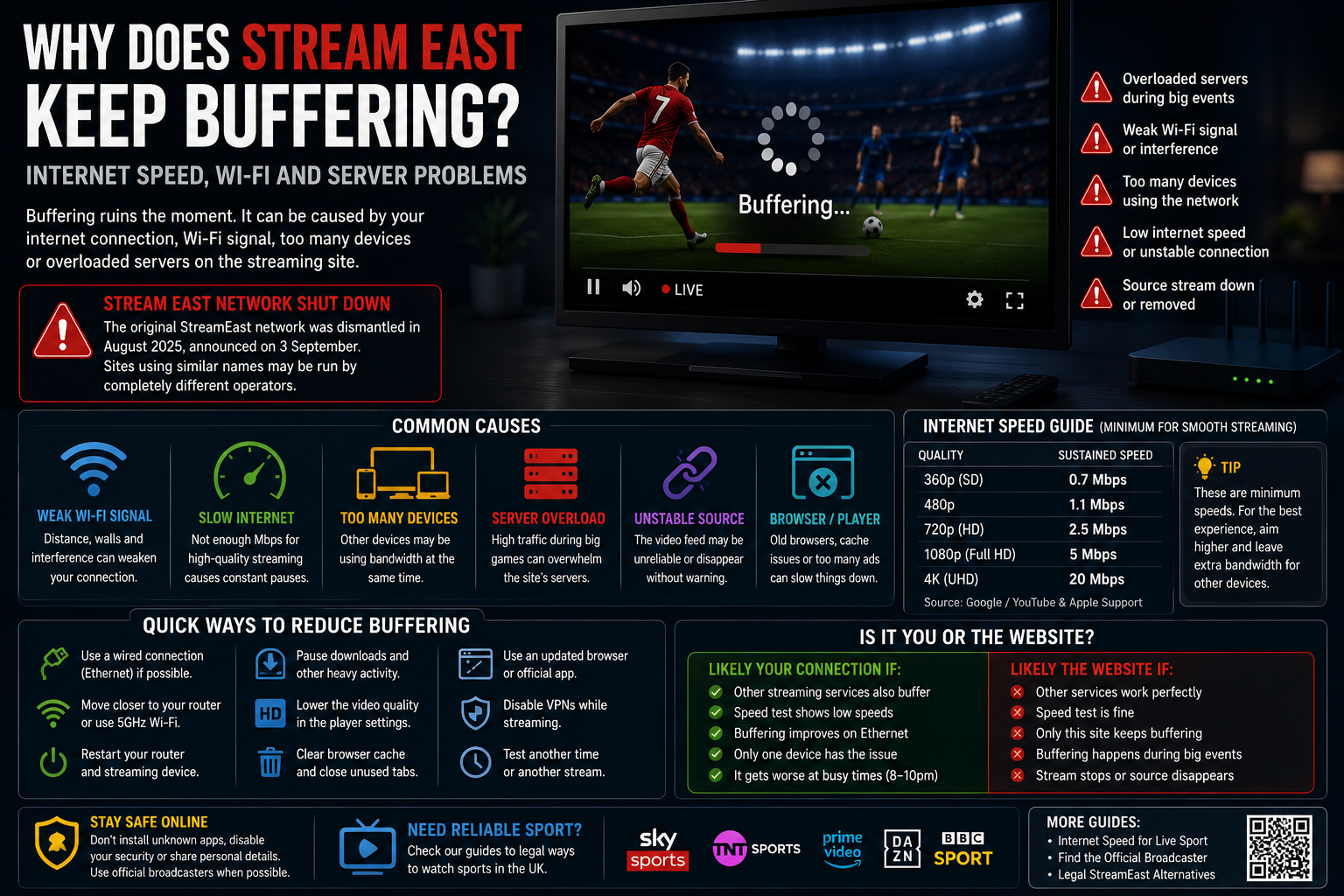
Buffering is one of the most frustrating problems in live sports viewing. A video may look clear before kick-off, begin stuttering as more viewers arrive and freeze completely during the most important moment of the match.
When a Stream East page keeps Why Does Stream East Keep Buffering, many viewers immediately blame their broadband. The home connection may be responsible, but it is only one part of the journey between a live event and the screen.
A stream can also fail because the website’s server is overloaded, the embedded video source is unstable, the player is surrounded by heavy advertising scripts or the original feed has disappeared. Lowering the picture quality may help with a weak connection, but it cannot repair a source that is no longer delivering video.
The StreamEast name creates another complication. The original network was dismantled in August 2025, with the shutdown announced on 3 September. ACE said it had operated through 80 domains and attracted more than 1.6 billion visits during its final year. Websites now using similar names should not automatically be treated as parts of that former network. Their servers, players and operators may be entirely unrelated.
This guide explains how to distinguish a home-network problem from an unstable website, which troubleshooting steps are reasonable and why some buffering cannot be fixed from the viewer’s side.
What Does Buffering Actually Mean?
Online video is delivered in small sections rather than arriving as one complete file.
The player stores a short amount of upcoming video in a temporary buffer. While one section is playing, the next section is being downloaded. When the new video arrives faster than it is consumed, playback remains smooth.
Buffering appears when the player runs out of ready video.
This can happen because:
- the internet connection becomes too slow;
- the Wi-Fi signal drops;
- other devices consume the available bandwidth;
- the source server stops sending data quickly enough;
- the page overloads the browser;
- the video quality is too high for the connection;
- the stream itself disappears or is interrupted.
The loading circle does not identify which of these problems is responsible. It only shows that the player is waiting for more information.
Why Stream East May Buffer More During Major Events
Large live events attract viewers at the same time.
A prerecorded programme can be stored across several servers in advance. Live sport must be delivered as it happens, and demand can rise sharply shortly before kick-off, the first bell or the start of a race.
An unofficial site may appear stable while only a small number of people are watching. Once a major football match or fight begins, its servers or third-party video host may be unable to keep up.
The result can include:
- frequent pauses;
- a drop in picture quality;
- audio continuing after the image freezes;
- the player reconnecting repeatedly;
- complete loss of the feed.
This is a server-capacity problem rather than a broadband problem inside the home.
The original StreamEast operation reportedly attracted more than 136 million average monthly visits, demonstrating the enormous demand that could surround its sports listings. Present-day lookalikes may use far smaller and less dependable infrastructure.
The Source Server May Be the Real Problem
A live video travels through several stages before reaching the viewer.
The event is produced, encoded into digital video, delivered through servers and then played through the website or application. A failure at any stage can cause buffering.
With an unfamiliar streaming page, the website may not control the original video source. It may embed a feed from another host or place a player around content delivered from elsewhere.
If that third-party source becomes overloaded or disappears, the website can remain online while the video stops.
This explains why a page may still show:
- team names;
- fixture times;
- advertisements;
- a chat box;
- a loading player.
The page itself is loading. The live video behind it is not.
No change to the home router can repair a missing remote source.
How Much Internet Speed Does Live Video Need?
The required speed depends on resolution, frame rate, compression and the service delivering the video.
Google’s YouTube guidance gives approximate sustained speeds of:
- 0.7 Mbps for 360p;
- 1.1 Mbps for 480p;
- 2.5 Mbps for 720p;
- 5 Mbps for 1080p;
- 20 Mbps for 4K UHD.
Apple gives a more cautious recommendation for its own platform, stating that HD streaming requires a connection of at least 8 Mbps. The difference shows why speed requirements should be treated as practical estimates rather than universal rules. Each service encodes and delivers video differently.
A household also needs enough capacity for everything else happening on the connection.
A 20 Mbps connection might technically support one 4K video under ideal conditions, but it can struggle when several phones, televisions, game consoles and computers are active at the same time.
For a fuller breakdown, see our guide to internet speed for live sport.
The Advertised Broadband Speed Is Not Always the Speed Reaching the Device
A broadband package may advertise a particular maximum or average speed, but the television or phone may receive less.
Performance can be affected by:
- distance from the router;
- walls and floors;
- interference;
- older Wi-Fi hardware;
- network congestion;
- the number of connected devices;
- the time of day;
- problems with the internet provider;
- the device’s own wireless capability.
Ofcom requires participating broadband providers to give customers realistic speed information, including the speed commonly available during the busiest evening period. It defines the busiest residential period as approximately 8pm to 10pm.
That timing overlaps with many evening football matches, boxing cards and American sports games.
A connection that performs well during the afternoon may slow when the local network and household are busiest.
Run a Speed Test on the Device You Are Using
A speed test performed beside the router on a new phone may not reflect the connection reaching a smart television in another room.
Test as close as possible to the actual viewing setup.
When practical:
- Connect the television, phone or laptop to the same network used for the stream.
- Pause large downloads and software updates.
- Run more than one test.
- Test at roughly the same time the buffering usually occurs.
- Compare the result with another device in the same room.
A strong result does not prove that the streaming website’s server is healthy. It does help rule out a severely limited home connection.
When official video platforms work smoothly at high quality while one Stream East page repeatedly buffers, the problem is more likely to be connected with that page, player or source.
Wi-Fi Signal Strength Matters as Much as Package Speed
A fast broadband line is less useful when the device has a weak wireless connection.
Wi-Fi performance usually drops as the device moves farther from the router. Thick walls, metal objects, appliances and neighbouring networks can weaken or interfere with the signal.
Google’s troubleshooting guidance recommends checking that the streaming device is connected to the correct Wi-Fi network, restarting the router and considering Ethernet for a direct wired connection. It also advises moving a streaming device away from other equipment and cables that can create interference.
Apple similarly recommends checking the router’s range and trying another frequency band when one is available.
A device can remain technically connected to Wi-Fi while the connection is too weak for smooth live video.
The Difference Between 2.4 GHz and 5 GHz Wi-Fi
Many routers provide two common Wi-Fi bands.
2.4 GHz
This band generally reaches farther and passes through walls more effectively. It is also more crowded and can be slower.
It can work well when the television is far from the router, but interference from neighbouring networks and household equipment may affect performance.
5 GHz
This band usually provides faster speeds and experiences less congestion, but its range is shorter.
It can be better for high-quality streaming when the television or device is relatively close to the router.
Apple suggests trying another frequency, such as moving from 2.4 GHz to 5 GHz, when troubleshooting a Wi-Fi connection.
The better band depends on the layout of the home. A weak 5 GHz signal may perform worse than a strong 2.4 GHz connection.
Ethernet Is Often More Stable Than Wi-Fi
A wired Ethernet connection removes many wireless variables.
The device connects directly to the router rather than relying on radio signals travelling through the home. This can improve consistency even when the headline speed does not change dramatically.
Google recommends Ethernet as a way to alleviate home Wi-Fi problems on supported streaming devices.
Ethernet is especially useful for:
- smart televisions;
- streaming boxes;
- games consoles;
- desktop computers;
- fixed viewing setups.
A cable will not fix an overloaded Stream East server, but it can rule out weak Wi-Fi as the cause.
When an official application plays smoothly through Ethernet while an unofficial page still freezes, the source website remains the more likely problem.
Other Devices May Be Using the Connection
A household’s bandwidth is shared.
One device downloading a large game update can affect the television in another room. Cloud backups, video calls and other streams can also consume significant capacity.
Common background uses include:
- game and application updates;
- cloud photograph backups;
- operating-system downloads;
- another television playing 4K video;
- video calls;
- security-camera uploads;
- file syncing;
- social applications autoplaying video.
Close or pause unnecessary activity during the event.
This is particularly important on slower connections. Ofcom describes 30 Mbps or more as a level that can support 4K viewing and several connected devices more comfortably, while its minimum “decent broadband” benchmark is 10 Mbps download and 1 Mbps upload.
The 10 Mbps benchmark is not a guarantee of smooth high-definition sport across a busy household.
Why Live Sport Can Need More Stability Than Ordinary Video
On-demand platforms can build a larger buffer because the entire programme is already available.
Live sport must stay close to real time. The player cannot always store several minutes of future video because those moments have not happened yet.
This smaller margin makes live coverage more sensitive to:
- sudden speed drops;
- packet loss;
- unstable Wi-Fi;
- server congestion;
- player errors.
A connection that is good enough for films may still show occasional problems during low-latency live sport.
The movement on screen also matters. Football, basketball, motorsport and boxing contain rapid changes and detailed motion. Lower-quality compression can become more noticeable than it would during a slower programme.
Why the Picture Becomes Blurry Before Buffering
Many modern players use adaptive streaming.
Rather than stopping immediately when the connection slows, the player can reduce the picture quality. This allows playback to continue while using less data.
The pattern may look like this:
- The video begins in high definition.
- The connection or server slows.
- The player drops to a lower resolution.
- The picture becomes soft or pixelated.
- Playback pauses if the lower quality still cannot be delivered.
This behaviour is often preferable to complete freezing, but unofficial embedded players may handle quality changes badly.
The picture may switch repeatedly or become stuck at a low setting even after the connection improves.
Should You Lower the Video Quality?
Lowering the resolution is a reasonable test when the connection is limited.
Try moving from:
- 1080p to 720p;
- 720p to 480p;
- automatic quality to a fixed lower setting.
YouTube’s published figures show the substantial difference between the approximate sustained speed needed for 1080p and 720p video.
A lower resolution may help when:
- mobile data is weak;
- the Wi-Fi signal is unstable;
- several devices share the connection;
- the broadband package is slow.
It will not help when:
- the source video has stopped;
- the server is overloaded beyond recovery;
- the player is fake;
- the website has lost the feed;
- advertising scripts are crashing the page.
An unofficial player’s quality menu may not always correspond to genuine alternative streams.
Advertising Scripts Can Slow the Browser
A streaming webpage may be running far more than the visible video.
Background activity can include:
- advertising auctions;
- tracking scripts;
- video advertisements;
- pop-up systems;
- visitor counters;
- chat widgets;
- several embedded players;
- cryptocurrency or promotional scripts.
Each element uses memory, processor time and network capacity.
On an older phone, laptop or television browser, this activity can make the page slow even when the broadband connection is fast.
Closing unrelated tabs and background applications can help reduce device load. Google recommends closing other tabs, browsers and programmes when troubleshooting video playback.
Do not disable security tools simply because an unfamiliar page says they are blocking its player. The blocked content may be the advertising or tracking behaviour causing much of the problem.
Browser Cache and Stored Website Data
Browsers store temporary files so websites can load more quickly.
When those files become outdated or damaged, a player may fail to initialise correctly. The page can show an endless spinner, blank player or repeated error.
Clearing the affected site’s cache or stored data can sometimes solve an ordinary browser problem.
It will also:
- remove cookies;
- sign the user out;
- reset permissions or preferences;
- force the page to download its files again.
Google’s YouTube troubleshooting guidance includes clearing application cache and testing another internet connection when video will not load correctly.
This step cannot restore a suspended domain or missing source server.
An Outdated Browser or Device Can Affect Playback
Video standards and security systems change over time.
An older browser may fail to support the scripts, codecs or security certificates expected by a current player. Older smart televisions can be particularly affected because their built-in browsers may receive fewer updates.
Google recommends checking for device and application updates when video quality or Google TV performance becomes poor.
Apple also advises keeping AirPlay devices updated and on the same network when streaming or mirroring fails.
Install updates through the device manufacturer, operating-system settings or recognised application store.
Never install a supposed browser update offered by a pop-up over an unfamiliar sports player.
Why a Phone May Buffer More Than a Laptop
Mobile viewing introduces several extra variables.
The phone may:
- move between network cells;
- switch between 5G and 4G;
- enter an area with weak signal;
- use a data-saving setting;
- reduce performance when hot;
- reload a browser tab when memory is low;
- restrict background activity to preserve battery.
A laptop connected to stable home Wi-Fi may therefore play the same official service more smoothly.
Apple allows users to select high-quality or data-saving streaming settings in supported applications and notes that high quality requires a faster connection and more data.
Mobile users should check whether buffering occurs on both mobile data and Wi-Fi. When only one connection fails, the network rather than the phone may be responsible.
Our StreamEast mobile guide covers mobile data, permissions and browser behaviour in greater depth.
Why Casting Can Add Another Point of Failure
Casting introduces another connection between the source device, the home network and the television.
For normal operation, devices usually need to be connected to the same Wi-Fi network. Apple and Google both identify network consistency as an important part of AirPlay and Cast troubleshooting.
Problems can appear when:
- the phone and television use different networks;
- one device connects through a guest network;
- the phone uses a VPN;
- the router prevents devices from seeing one another;
- the receiving device has weak Wi-Fi;
- the browser player does not support casting properly.
Screen mirroring can be more demanding than direct casting because the source device must receive the video and reproduce its entire screen on the television.
Use the broadcaster’s proper Cast or AirPlay control when available rather than mirroring an unstable browser page.
Why a VPN Can Cause Buffering
A VPN routes internet traffic through another server.
This can add distance and processing time to the connection. A slow or busy VPN server may reduce speed or increase delay.
The effect depends on:
- the VPN provider;
- the selected server;
- the distance to that server;
- encryption overhead;
- local network quality.
Apple includes VPN and security software among the areas to check when network connections fail, while its current guidance suggests temporarily removing such software during Wi-Fi diagnosis when appropriate.
A VPN does not repair an unavailable Stream East server. It also does not give an unauthorised streaming page permission to distribute protected sport.
Do not install a VPN promoted by a pop-up simply because the stream is buffering.
Why Buffering Happens at the Same Time Every Evening
Evening slowdowns can be caused by congestion.
Within the home, more people may be using televisions, phones and consoles after work or school. At the provider level, neighbourhood demand can also rise during peak hours.
Ofcom measures broadband performance during the evening peak and requires providers under its speed code to give customers an indication of the service they can expect at busy times.
If official streaming services and ordinary websites all slow at the same time each evening, record several speed tests and contact the internet provider.
When only one Stream East-style page fails, the website remains the more likely source of the problem.
Why Buffering Happens Only Near the End of a Match
Demand can increase as an event becomes more important.
Viewers may join late for:
- the final minutes of a close football match;
- a penalty shootout;
- the final round of a fight;
- the closing laps of a race;
- the end of a basketball game.
A limited server may struggle under this sudden increase.
There is little a household can do when the remote source is overloaded. Lowering the resolution may help temporarily, but changing router settings cannot create capacity on someone else’s server.
This is one of the clearest differences between local and source-side buffering: every other service in the home continues working normally while one particular stream collapses as its audience grows.
Audio Works but the Picture Freezes
Audio usually requires less data than video.
When the connection slows, the player may continue receiving enough information for sound while falling behind on the picture.
This can also result from:
- a video-decoding problem;
- insufficient device processing power;
- a corrupted player;
- a casting issue;
- an unsupported video format.
Restarting the browser or official application can clear a temporary decoder problem.
When the issue occurs only on an unofficial embedded player, the source format or website code may be responsible.
The Stream Is Behind the Live Action
Every online stream has some delay.
The event must be captured, processed, encoded, transmitted and buffered before appearing on the screen.
A larger buffer can make playback smoother but increases the delay. A low-latency stream stays closer to the event but has less stored video available when the connection briefly slows.
This is why the score may appear on a phone notification before the goal is shown on the television.
Refreshing the page may reduce or increase the delay depending on how the player reconnects. It can also trigger more advertisements and should not be repeated constantly.
Safe Troubleshooting Steps
The following checks can help identify an ordinary technical problem without weakening device protection.
1. Test another recognised video service
Play a high-quality video on an official platform.
When that also buffers, focus on the connection or device. When it works normally, the Stream East source may be responsible.
2. Check the speed on the viewing device
A result from another room may not represent the television’s Wi-Fi connection.
3. Pause other heavy activity
Stop large downloads, cloud backups and other 4K streams temporarily.
4. Move closer to the router
This is useful for phones, tablets and streaming devices.
5. Try another Wi-Fi band
A nearby device may perform better on 5 GHz, while a distant one may need the longer range of 2.4 GHz. Apple includes changing frequency bands among its Wi-Fi troubleshooting suggestions.
6. Use Ethernet when available
A wired connection can remove Wi-Fi instability. Google recommends Ethernet as a direct alternative for supported streaming devices.
7. Restart the router
Google and Apple both include router restarts in their official connection guidance.
8. Restart the device or application
This can clear a temporary memory or decoding problem.
9. Update the device and browser
Use the manufacturer’s settings or recognised application store.
10. Lower the video quality
This can help when the connection is genuinely too slow.
11. Clear stored data for the affected site or app
Use this when a corrupted cache appears likely.
12. Stop when the page requests unsafe changes
Do not install software, disable protection or ignore security warnings to make an unknown player work.
What Not to Do
Buffering should not lead to unnecessary security risks.
Do not:
- install an unknown video player;
- download a browser extension from the page;
- disable antivirus protection;
- bypass a certificate warning;
- allow notifications to unlock the stream;
- enter card details for free verification;
- turn off Play Protect;
- install a television app from an unverified source;
- keep following redirects to supposed backup players;
- change advanced router settings from instructions shown in an advert.
A legitimate service can normally explain its technical requirements through an official help page and recognised application.
When to Contact the Broadband Provider
Contact the internet provider when:
- several official services buffer;
- speed tests are consistently below the promised range;
- performance drops every evening;
- every device has the same problem;
- wired connections are also slow;
- the router repeatedly disconnects.
Ofcom says customers covered by its broadband speed code should receive clear information about expected speeds and may have remedies when performance remains below the guaranteed minimum.
Keep a record of speed tests performed at different times, including during the periods when the problem is most severe.
The provider cannot repair a remote Stream East server, so first confirm that the slowdown affects more than one service.
When the Website Is the Problem
The website is likely responsible when:
- every official streaming service works normally;
- the speed test is strong;
- buffering begins only during popular events;
- several devices show the same failure on one page;
- the player opens repeated advertisements;
- the source disappears completely;
- lowering the resolution makes no difference;
- the event listing remains visible but the video does not;
- the same domain behaved differently on a previous visit.
In that situation, continuing to change home-network settings is unlikely to help.
The responsible option is to find the authorised broadcaster rather than searching through mirrors or copied addresses.
Our guide to finding the official sports broadcaster provides a repeatable checking process, while legal StreamEast alternatives for UK viewers compares wider viewing options.
Buffering Is Not Always Fixable From Home
A loading circle does not automatically mean the broadband package is too slow.
It may indicate weak Wi-Fi, a busy household, an outdated device or a quality setting that is too demanding. Those problems can often be improved through ordinary troubleshooting.
It can also indicate that the website’s server is overloaded, the third-party feed has failed or the player no longer has a source. Those problems are outside the viewer’s control.
The original StreamEast network was dismantled in 2025, and pages now using similar names may be run through entirely different infrastructure. A video that worked yesterday does not guarantee that the same domain, server or operator remains dependable today.
Test another recognised service, check the connection on the actual device, reduce unnecessary network use and keep security protections enabled. When everything else works and one unfamiliar sports page continues buffering, the problem is probably not inside the home.
Stream-east.org.uk is an independent informational publication. It is not affiliated with the former StreamEast network, does not host live sports broadcasts and does not provide links to unauthorised streams.